- DATE:
- AUTHOR:
- Toast product communications
Links

Send orders to the kitchen from Retail Mode
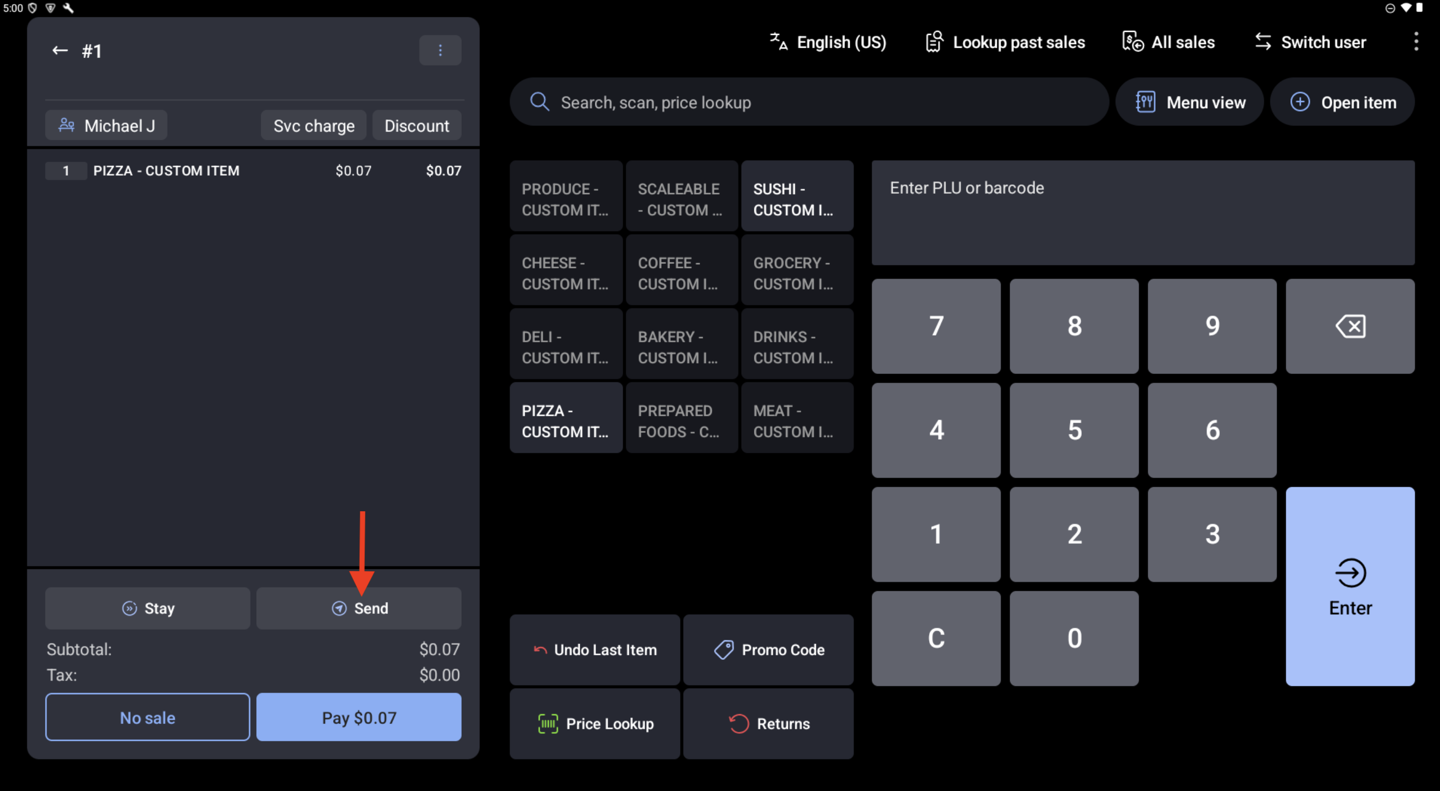
You can now use the Send button in Retail Mode, the same way it works in Quick Order. Selecting Send fires the order to the kitchen or prep station, keeps the check open so it can be paid later, and starts a new, empty order for the next customer. You don't have to leave and reenter Retail Mode, which helps counters with a deli or prepared-food station keep the line moving.
The Send button appears only when it's turned on in your Toast Web POS button settings (Front of House > Order screen setup > Quick order).
For more information, see Get Started With Retail POS Mode.
How to verify
In Toast Web, make sure the Send button is turned on in Toast Web.
On a device running Toast POS app version 2.116 or later, open Retail Mode and add items to an order.
Check that a Send button appears at the bottom of the order.
Select Send. A new, empty order opens and you stay in Retail Mode.
Find the order you just sent in the list of open checks. It shows the right items and total, and the kitchen ticket printed when you selected Send.
Availability
First available in Toast POS version 2.116.
Countries affected
United States, Canada, United Kingdom, Ireland
Links