- DATE:
- AUTHOR:
- Toast product communications
Links

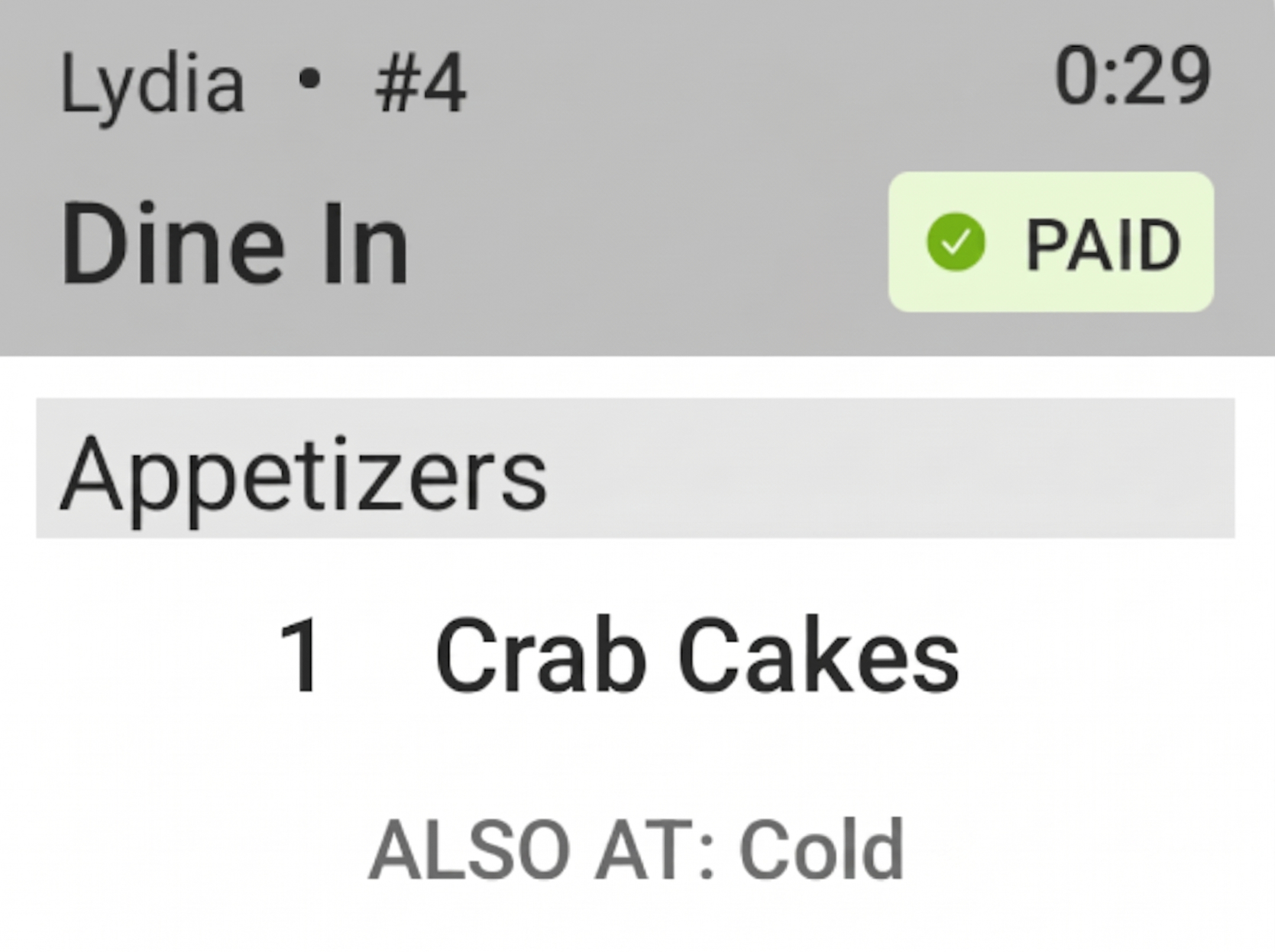
KDS ticket footers list every prep station working on a ticket
Previously, when both of the following were true:
Your prep stations used Prep station only for the Send to setting
Other stations was set to For each ticket, list other stations working on that ticket
Prep station KDS devices on the new kitchen display system (KDS) view did not show the ALSO AT footer on tickets. The footer appeared only when Send to was set to Prep station and expediter. Prep station KDS devices now show the ALSO AT footer for both Send to options, Prep station only and Prep station and expediter.
For more information about viewing other stations working on a KDS ticket, see Monitoring KDS tickets.
How to verify
Test at a location in Test Mode.
Go to Kitchen > Kitchen stations > Prep stations. The Prep stations page opens.
For each prep station, set the Send to setting to Prep station only. For more information, see Adding a prep station.
Go to Kitchen > Printers, tickets, & KDS devices > Kitchen and ticket setup.
In the Ticket Screens section, verify that Other stations is set to For each ticket, list other stations working on that ticket.
Save and publish your changes.
On a Toast POS device, create an order with items sent to more than one prep station. This can be one item sent to several prep stations, or several items in one order sent to different prep stations.
On a new KDS view device assigned to one of those prep stations, note that ALSO AT appears at the bottom of the ticket.
Availability:
First available in Toast POS version 2.116.
Countries affected
All
Links