- DATE:
- AUTHOR:
- Toast product communications
Links

Ticket headers flash in step and course banners show your kitchen names on the new KDS view
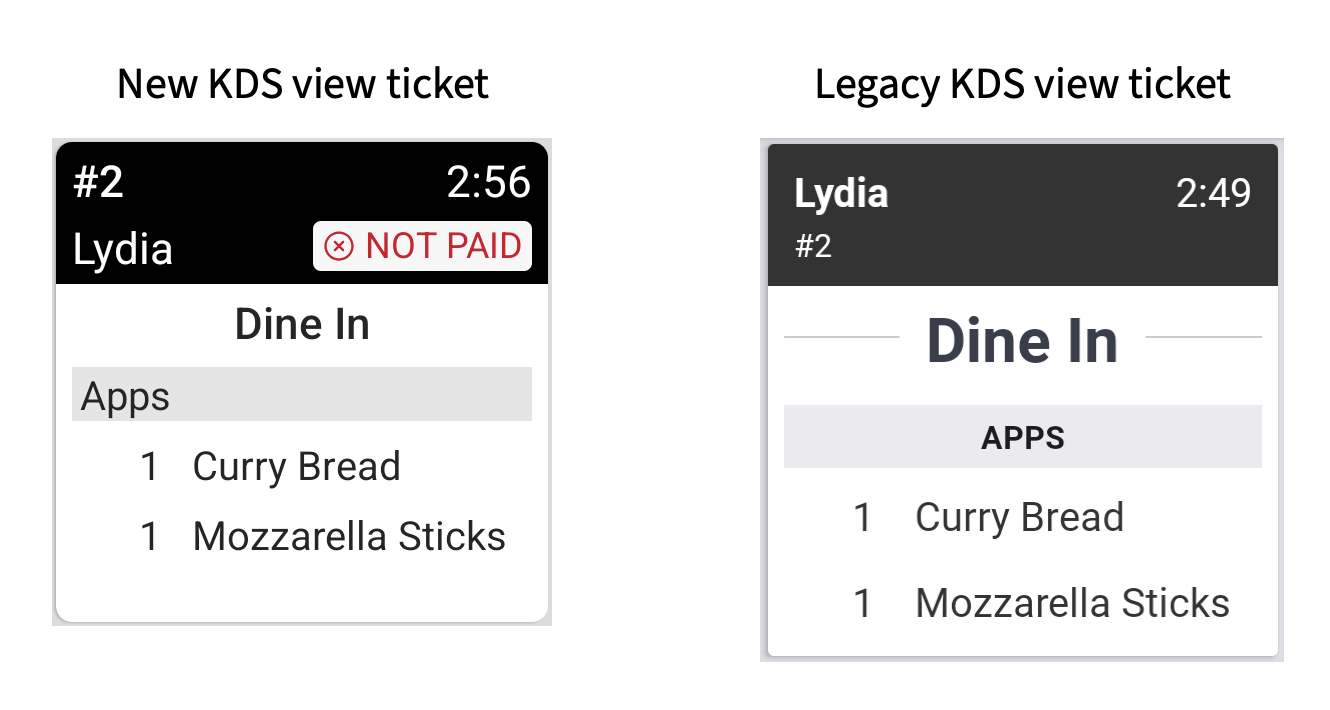
Ticket appearance on the new kitchen display system (KDS) view now more closely matches the legacy KDS:
Ticket headers flash between colors without animation, and unacknowledged tickets flash in step with one another across all tickets and all KDS devices.
An unacknowledged ticket that reaches a warning level now flashes in the warning color rather than the default color.
Course banners now show the kitchen name you configured for a course rather than the course's original name.
For more information about new KDS view, see New KDS view.
How to verify
Test at a location in Test Mode.
Go to Kitchen > Printers, tickets, & KDS devices > Kitchen and ticket setup to open the Kitchen page.
In the Ticket Screens section, set Warning Colors to Enabled and configure your heading colors. For example, set Level 1 to a Threshold of 1 minute and a Color of red.
In the Kitchen Names section, change a course name to something different. For example, change the Appetizers course name to Apps.
Save and publish your changes.
On a Toast POS device, create an order that uses the course you changed in step 4 and send it to the kitchen.
On a KDS device that receives the ticket, note that the ticket flashes without animation, that the flash uses the warning color rather than the default color once the ticket reaches 1:00, and that the course banner shows the kitchen name you set in step 4.
Availability:
First available in Toast POS version 2.116.
Countries affected
All
Links